
[xyz-ips snippet=”lesson7″]
Introduction
In order to control our Smart Home with ease, we can utilize WiFi, AWS-IoT, and Amazon Alexa to control and manage all of the smart devices throughout our home.
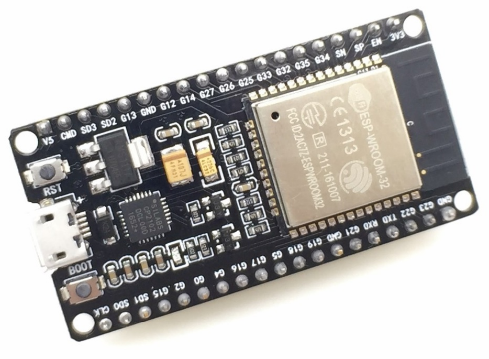
The most common implementation of this setup is using an Espressif ESP-32 WiFi/BLE Module.
NodeMCU ESP-32 Development Board
The ESP-32 is a combination WiFi/BLE module that replaces the popular legacy ESP8266 module that has been at the heart of wireless projects for many years. The ESP-32 improves upon the ESP8266 in every way. You can see the specifications of the chip listed below.
Features & Specifications:
- Wireless connectivity
- WiFi: 150.0 Mbps data rate with HT40
- Bluetooth: BLE (Bluetooth Low Energy) and legacy Bluetooth.
- Processor: Tensilica Xtensa Dual-Core 32-bit LX6 microprocessor, 160 MHz or 240 MHz
- ROM: 448 KB
- SRAM: 520 KB
- Low Power: ensures that you can still use ADC conversions, for example, during deep sleep.
- Peripheral Input/Output: peripheral interface with DMA that includes capacitive touch, ADCs (Analog-to-Digital Converter), DACs (Digital-to-Analog Converter), I²C (Inter-Integrated Circuit), UART (Universal Asynchronous Receiver/Transmitter), SPI (Serial Peripheral Interface), I²S (Integrated Interchip Sound), RMII (Reduced Media-Independent Interface) and PWM (Pulse-Width Modulation).
- Security: hardware accelerators for AES and SSL/TLS
Home Automation With Alexa and NodeMCU
We will explore in this tutorial, how to use Alexa, an intelligent personal assistant developed by Amazon Lab126, made popular by the Amazon Echo and Echo-Dot.
Alexa is capable of voice interaction, music playback, making to-do lists, setting alarms, streaming podcasts, playing audiobooks, and providing weather, traffic, and other real time information. Alexa can also control several smart devices using itself as a home automation hub. We will use on this project, the “Echo-Dot”, that allows users to activate the device using a wake-word (such as “Alexa”).
WeMo is a series of products from Belkin International, Inc. that enables users to control home electronics from anywhere. The product suite includes a switch, motion sensor, Insight Switch, light switch, camera and app. The WeMo Switch (our case here) can be plugged into any home outlet, which can then be controlled from an iOS or Android smartphone running the WeMo App, via home WiFi or mobile phone network.
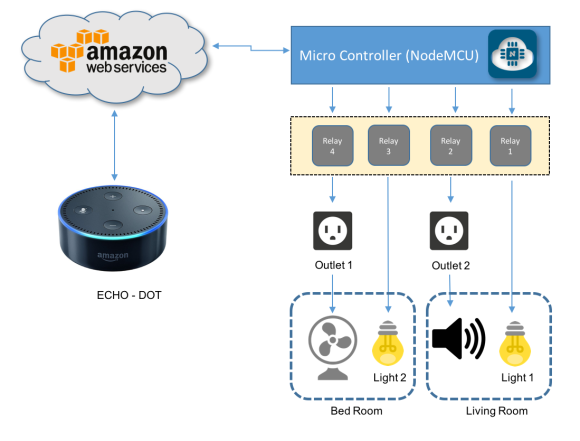
The below block diagram shows what will be developed on our project:
The below video, shows how the project will look like at end:
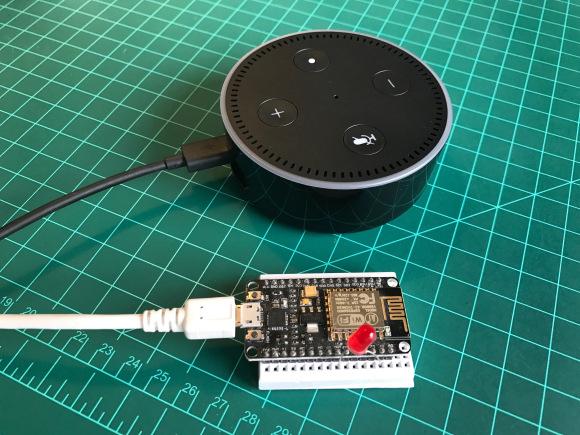
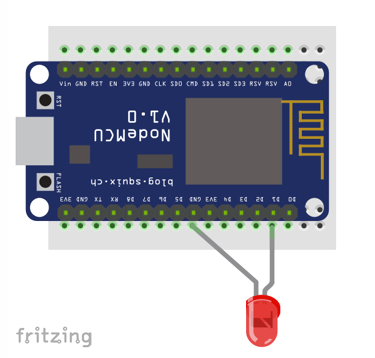
For our first test, let’s connect a LED at NodeMCU pin D1 as shown at above diagram.
Open the file Alexa_LED_Control_V2_EXT.ino that you downloaded from my GitHub and change the dummy wifi credentials, with your own:
[cc lang=”c” width=”500″]
const char* ssid = “YOUR SSID”;
const char* password = “YOUR PASSWORD”;
[/cc]
Confirm that you have properly defined the pin where the LED is connect and give a name for your device:
[cc lang=”c” width=”500″]
String device_name = “lights”; // Name of device
int relayPin = D1; // Pin to toggle
[/cc]
In my case, the device will be named “Lights“. Here in this example is a single LED, but could be connected to a relay that will turn on the lights of my office.
Upload the code to your NodeMCU.
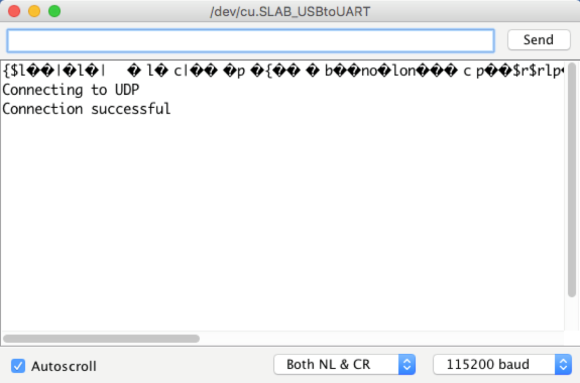
On Serial monitor you can see the message “Connecting to UDP” and “Connection Successful”. This means that from NodeMCU’s side it all OK.
I assume that you already have Echo-Dot installed on your network, as well as the Alexa App on your smartphone. The procedures for installing both, are quite simple. Simply follow the Amazon instructions provided with the device.
Now, let’s ask to Alexa to find your device. There are 2 methods to do it:
1. Using the Alexa App in your Smartphone as shown on the photos. In our case, Alexa will find “1 Smart Home device”: lights WeMo Switch.
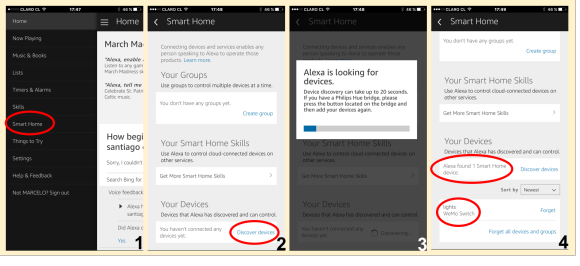
Asking Alexa to do it directly using voice command, like: “Alexa, Find connected devices” as shown in the video below:
https://youtu.be/x8PqB6X6Sg0
https://youtu.be/A604IrQLjUU